
Notepad, Notes, Easy Notebook
Simple Design Ltd.Productivity
4.814.63K Reviews
- Version
- 1.4.4.103
- Installs
- 10.00M
- Age Rating
- Everyone
Screenshots
Our Review of Notepad, Notes, Easy Notebook
 Analysis by Appyee
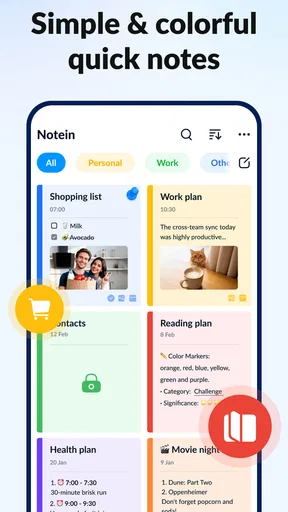
I tend to judge a notes app by what happens when I am in a hurry. Can I capture an idea before it disappears? Can I find a shopping item without wading through clutter? Can I turn a quick reminder into a small, repeatable routine? Notepad, Notes, Easy Notebook is built for those ordinary moments rather than for managing a large knowledge base. It is a free productivity app from Simple Design Ltd. that combines note-taking, to-do lists, shopping lists, and reminders in a deliberately uncomplicated package.
That simplicity is the main reason I found it easy to approach, but it also defines the app’s limits. This is not the kind of tool I would choose for a team project, a research archive, or a heavily cross-linked personal wiki. I see it as a lightweight digital notebook: quick to open, easy to understand, and most useful when I want a short list or a piece of text to stay visible until I deal with it.
The app has earned a 4.8 average from around 457 thousand ratings, with more than 10 million installs. Those figures fit my impression that it appeals to people who want less setup than a full-featured organizer demands. It is rated for Everyone, works from Android 8.0 onward, and the current version is 1.4.2. The basic download is free, while optional in-app purchases range from $3.99 to $30.99 per item.
Getting past the first points of friction
I find the first hurdle with a simple notebook is choosing a routine that stays easy to use, rather than adding layers of organization that slow down quick capture. In this section, I focus on small adjustments that make notes and lists easier to approach, then turn to what I would do when a familiar workflow breaks.
The first decision is how simple you want your system to be
When I first use a minimalist notes app, the temptation is to create a separate note for every thought. That feels tidy at first, but it can quickly turn a small notebook into a pile of disconnected scraps. I get better results by deciding in advance what each note is for: one note for errands, one for groceries, one for ideas, and individual notes for information that deserves to remain separate.
That small bit of planning matters here because the app’s appeal is speed. If I have to invent a filing system every time I open it, I lose the advantage of a simple interface. My preferred approach is to keep temporary notes short and convert anything that becomes an action into a to-do list. A note can hold context, while the list gives me a clear next step.
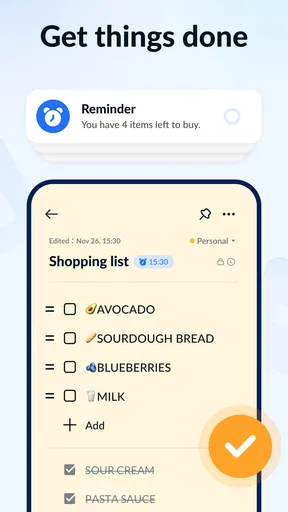
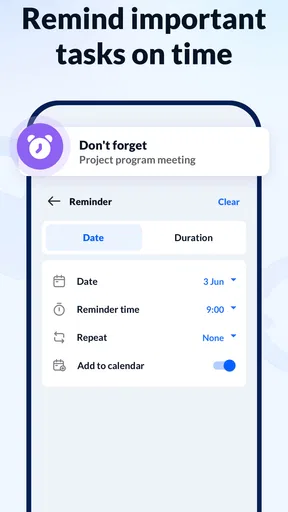
The store summary mentions reminders, and that makes the app more useful than a plain blank page. I would use a reminder for something that must resurface at a particular point, not for every loose thought. If I attach reminders to everything, the feature becomes background noise. A better routine is to reserve them for appointments, calls, household tasks, or items that are easy to forget when the day becomes busy.
Setup checks that prevent mistaken troubleshooting
Before blaming the app for an installation problem, I would check the basics. The device needs to run Android 8.0 or later, so an older phone may be the real reason the app cannot be installed or updated. I would also make sure there is enough free storage and that the device has a stable connection during installation. These are unglamorous checks, but they often explain more than a confusing message on the screen.
After opening the app, I would create a harmless test note rather than immediately entering important information. I would type a short sentence, make a small to-do list, and try a reminder using a time I can observe soon. This gives me a quick way to confirm that text entry, list behavior, and notifications are working before I depend on them for something important.
Notification behavior deserves particular attention. If a reminder does not appear, the app may not be the only possible cause. Android settings can restrict notifications, battery activity, or background behavior depending on the phone manufacturer. I would check the app’s notification permission and the device’s battery-saving controls, then test again. I would not assume that reinstalling is the first or best answer.
The same principle applies to typing. If the keyboard feels slow or a character does not appear, I would test another app to see whether the issue follows the keyboard rather than the notebook. Switching keyboards, clearing a temporary keyboard problem, or restarting the device can be more relevant than changing anything inside the notes app.
A practical setup for shopping and errands
For shopping, I prefer one list that follows the route through the store instead of a note that mixes groceries, cleaning supplies, and unrelated reminders. I can add items as they occur to me, then reorder them before leaving. The useful insight is that the list does not need to represent my thoughts in the order I had them; it should represent the order in which I will act.
I also avoid deleting an item the moment I buy it when I know I will need it again soon. Marking it as completed, where appropriate, gives me a quick record while I am still in the shop. Once the trip is finished, I can clean up the list and keep only recurring items. This reduces the chance of accidentally removing a useful household reminder along with a one-off purchase.
For errands, I use a note for the background details and a to-do list for actions. For example, a note might contain the opening information or questions I need to remember, while the list contains “call,” “bring,” and “confirm.” That separation is more reliable than placing every detail in one long paragraph and hoping I notice the important line later.
Recovering a workflow when something goes wrong
Once the basics are in place, recovery is less about starting over and more about checking the likely source of a snag before changing anything. I’ll look at practical ways to protect important information and restore confidence in everyday use, while keeping the approach manageable for a lightweight notebook.
When a note seems to disappear
The first recovery step is to slow down and search the app’s visible note areas carefully. A note may have been edited, moved in the list, or mistaken for another entry with a similar first line. I would also check whether I accidentally created a new note instead of reopening the original one. Short notes with vague titles are especially difficult to identify, so I now begin important entries with a clear label.
If text vanishes while I am writing, I would first check whether the keyboard, the app, or the device is responsible. I would reproduce the problem with a tiny test sentence, close and reopen the app, and see whether the issue is repeatable. For valuable writing, I avoid treating a notes app as the only copy until I have confirmed how reliably my device is saving and displaying it.
That is not a criticism unique to this app; it is a sensible habit with any lightweight notebook. A grocery list is easy to recreate. A long set of travel details, work notes, or personal writing deserves an additional copy somewhere suitable. I would not build a critical archive around a tool chosen primarily for quick capture.
Recovering from accidental clutter
Minimalist apps can become cluttered because they make it so easy to add another entry. My recovery method is a weekly short review. I delete temporary notes, combine duplicates, and turn unfinished ideas into either a clear next action or a deliberately parked note. The goal is not perfect organization; it is making sure the app’s front screen still tells me what matters.
A useful rule is to write the next action as a verb. “Kitchen” is a weak task because it does not tell me what to do. “Measure the kitchen shelf” is better. This makes the to-do function more valuable without requiring a complex project-management system. It also reveals when the app is being asked to store background information that belongs in a longer document instead.
I would be careful with reminders during cleanup. Removing an old note does not necessarily mean I should remove a future obligation, and keeping a reminder without its supporting details can be just as confusing. Before clearing a note, I check whether it contains the context needed to complete a scheduled task. That tiny pause prevents a surprisingly common form of digital housekeeping error.
Why a reminder may still fail to help
A reminder is only useful if its wording tells me what I am expected to do. “Later” is not enough. I get better results from a direct instruction such as “take the documents to the post office.” I also avoid setting reminders at times when I know I will be driving, in a meeting, or asleep. The app can prompt me, but it cannot choose a realistic moment on my behalf.
If a reminder does not appear, I would check the scheduled time, the device clock, notification permissions, and any battery restrictions before assuming the feature is broken. I would also create a test reminder with a short delay. A controlled test separates a setup issue from a one-time mistake in the original reminder.
When the app is not the cause
Some problems that look like note-app failures begin elsewhere. A nearly full device can make several apps behave unpredictably. An outdated operating system can affect notifications or text entry. A keyboard update can change how fields respond. A manufacturer’s power-saving mode can delay background activity. Checking another app that uses notifications or typing gives me a useful comparison before I start deleting data.
Network access can also confuse the diagnosis. I would not assume that every action in a simple notebook requires the internet, but I would still test installation and updates with a dependable connection. If the app opens normally but the store cannot update it, that points toward the connection or store service rather than note editing itself.
Permissions deserve a calm review rather than blind approval. I grant what is needed for the behavior I actually use, especially notifications for reminders, and I revisit the device settings if something stops working after an operating-system change. I do not treat every permission prompt as proof that the app is unsafe, but I also do not grant access without understanding why it matters to my chosen workflow.
Where this app fits beside familiar alternatives
Compared with a paper notebook, this app is easier to revise and better suited to reminders and checkable lists. Paper still wins for sketching, instant visual freedom, and independence from a battery. Compared with a basic built-in notes app, this one is appealing when I specifically want the same place to handle ordinary notes, to-do items, shopping lists, and reminders without learning a large productivity system.
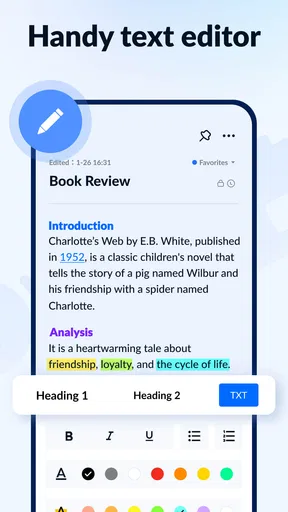
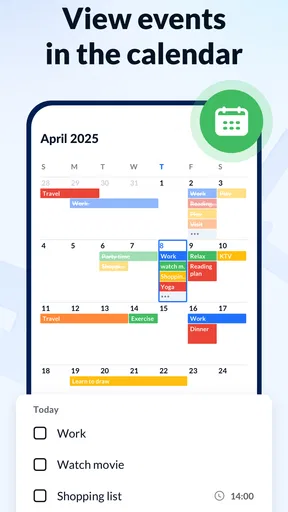
More advanced note platforms are better when I need rich formatting, attachments, deep search, collaboration, or a structured archive. Dedicated task managers are usually stronger for recurring work, projects, priorities, and progress tracking. A calendar remains the better home for appointments that depend on a fixed schedule. I would choose this app when the task is small enough to understand at a glance and when extra organization would slow me down.
The trade-off is clear: fewer layers can mean less friction, but also fewer ways to recover from disorder. Someone who wants tags, elaborate folders, shared workspaces, or a detailed history of changes may quickly outgrow it. Someone who repeatedly forgets where information was stored may also prefer a tool with stronger organization and search. The right question is not whether this app can replace every productivity tool, but whether its narrow focus matches the way I actually capture information.
Who should use it, and who should skip it
I would recommend it to students who need quick revision prompts, households managing shopping and chores, travelers collecting short preparation lists, and anyone who finds feature-heavy organizers intimidating. It is also a good fit for a spare phone or an older compatible device where a lightweight productivity tool makes more sense than a large suite.
I would skip it as my primary system if I were coordinating with colleagues, storing extensive reference material, managing a multi-stage project, or needing dependable access across a complicated set of devices. I would also be cautious about using it as the only place for irreplaceable writing. Its strength is immediate personal organization, not comprehensive information management.
There is another useful distinction: this app suits people who are willing to maintain a small system. If I refuse to review old notes, even a clean interface becomes crowded. On the other hand, if I only need a handful of active lists and reminders, a weekly cleanup takes very little effort. The app rewards restraint more than elaborate customization.
My practical verdict
After using it as a quick notebook, an errands list, and a reminder tool, I see Notepad, Notes, Easy Notebook as a focused choice for everyday capture. It does not try to turn a simple note into a full productivity database, and that is precisely why I can imagine recommending it to a friend who keeps abandoning complicated apps.
The best results come from treating it as a small working surface: write clear titles, separate background notes from actions, test reminders early, and keep a second copy of anything genuinely important. Those habits address the most likely sources of frustration without pretending that a simple app can solve device settings, keyboard problems, or an overloaded workflow.
Simple Design Ltd. has made an app whose value is easy to understand. It is free to start, suitable for Everyone, and familiar enough for a quick first session, while optional purchases are available for users who want more from the experience. I would choose it when I want a low-pressure place for notes, checklists, shopping, and reminders. I would choose a more advanced alternative when collaboration, rich organization, or long-term information management becomes the main job.
My final recommendation is therefore positive but specific: use it as a dependable everyday pad, not as a universal replacement for calendars, project managers, or document archives. If your main problem is capturing small tasks before they slip away, its straightforward design can remove more friction than a feature-packed competitor. If your needs already involve complex structure, the simplicity that makes this app pleasant may become the very limitation that sends you elsewhere.
Privacy and Permissions
See what permissions an app requests and how it handles your data.
- Photos/Media/Files
- read the contents of your USB storage, modify or delete the contents of your USB storage
- Storage
- read the contents of your USB storage, modify or delete the contents of your USB storage
- Wi-Fi connection information
- view Wi-Fi connections
- Other
- view network connections, expand/collapse status bar, full network access, run at startup, control vibration, prevent device from sleeping, Google Play license check, read Google service configuration
Verdict
Strengths of Notepad, Notes, Easy Notebook
- Clean, distraction-free interface for quick note-taking
- Supports organizing thoughts into separate notes
- Lightweight app with fast startup and smooth performance
- Useful for saving reminders, lists, and short ideas
- Simple design makes it accessible for beginners
Limitations of Notepad, Notes, Easy Notebook
- May lack advanced formatting and rich text editing tools
- Limited collaboration options for sharing notes with others
- No strong task-management features for complex projects
- Backup and synchronization options may be limited
- Could feel basic for users needing a full productivity suite
Other Releases by Simple Design Ltd.
View All
Video Downloader - Downloader
Video Players & Editors4.7

Fonts Keyboard Themes & Emoji
Personalization4.7

Image to PDF - PDF Maker
Productivity4.9

Document Reader - PDF Editor
Productivity4.7
Similar Picks in This Category
View All
Google Calendar
Google LLC4.6

Google Drive
Google LLC4.3

Google Assistant
Google LLC3.9

Microsoft OneDrive
Microsoft Corporation4.6

Samsung Calendar
Samsung Electronics Co., Ltd.4.1

Microsoft OneNote: Save Notes
Microsoft Corporation4.6
Frequently Asked Questions
What is Notepad, Notes, Easy Notebook used for?
Notepad, Notes, Easy Notebook is a straightforward note-taking app designed for quickly writing, saving, and organizing everyday information. You can use it for shopping lists, reminders, personal thoughts, study notes, work ideas, or short drafts. Its simple notebook-style approach makes it suitable for users who prefer an uncomplicated writing space instead of a feature-heavy productivity platform.
Does Notepad, Notes, Easy Notebook require an internet connection?
For basic note creation and reading, the app is generally designed to work without a constant internet connection, which is useful when you are traveling or have limited data access. However, certain features may depend on your device settings, app version, or external services. Before relying on it for important information, test offline editing and confirm how your notes are saved.
Can I organize my notes in Notepad, Notes, Easy Notebook?
The app is intended to make note management simple, so users can create separate entries and keep different kinds of information in one place. Depending on the installed version, organization options may include notebook-style grouping, titles, or basic sorting. Users with extensive archives should check the available search, category, and sorting tools before moving all their notes into the app.
Are my notes backed up or synchronized across devices?
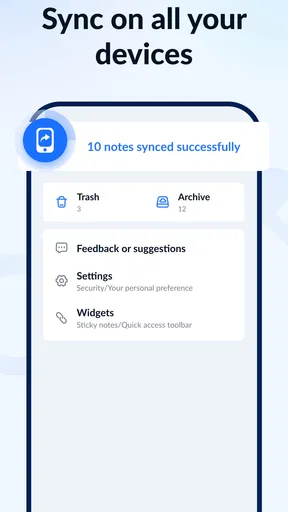
You should not assume that every note is automatically synchronized or backed up across Android or iOS devices. Backup and syncing capabilities can vary by platform, app version, and device configuration. If your notes are important, review the app’s storage and export options, enable any available backup feature, and keep an additional copy before changing phones or uninstalling the application.
Is Notepad, Notes, Easy Notebook free and suitable for everyone?
The application may be available as a free download, although the exact features, advertising, and optional purchases can differ between platforms and updates. It is a good choice for users who want quick, uncomplicated notes, but it may not replace advanced apps offering handwriting, collaboration, encryption, attachments, or task management. Check the store listing for current requirements and pricing before downloading.
